
Step 1
Pick what you want to make.
Start with one song, a six-song mix tape, or a full twelve-song album. Songora updates the track list and credit total for the format you choose.
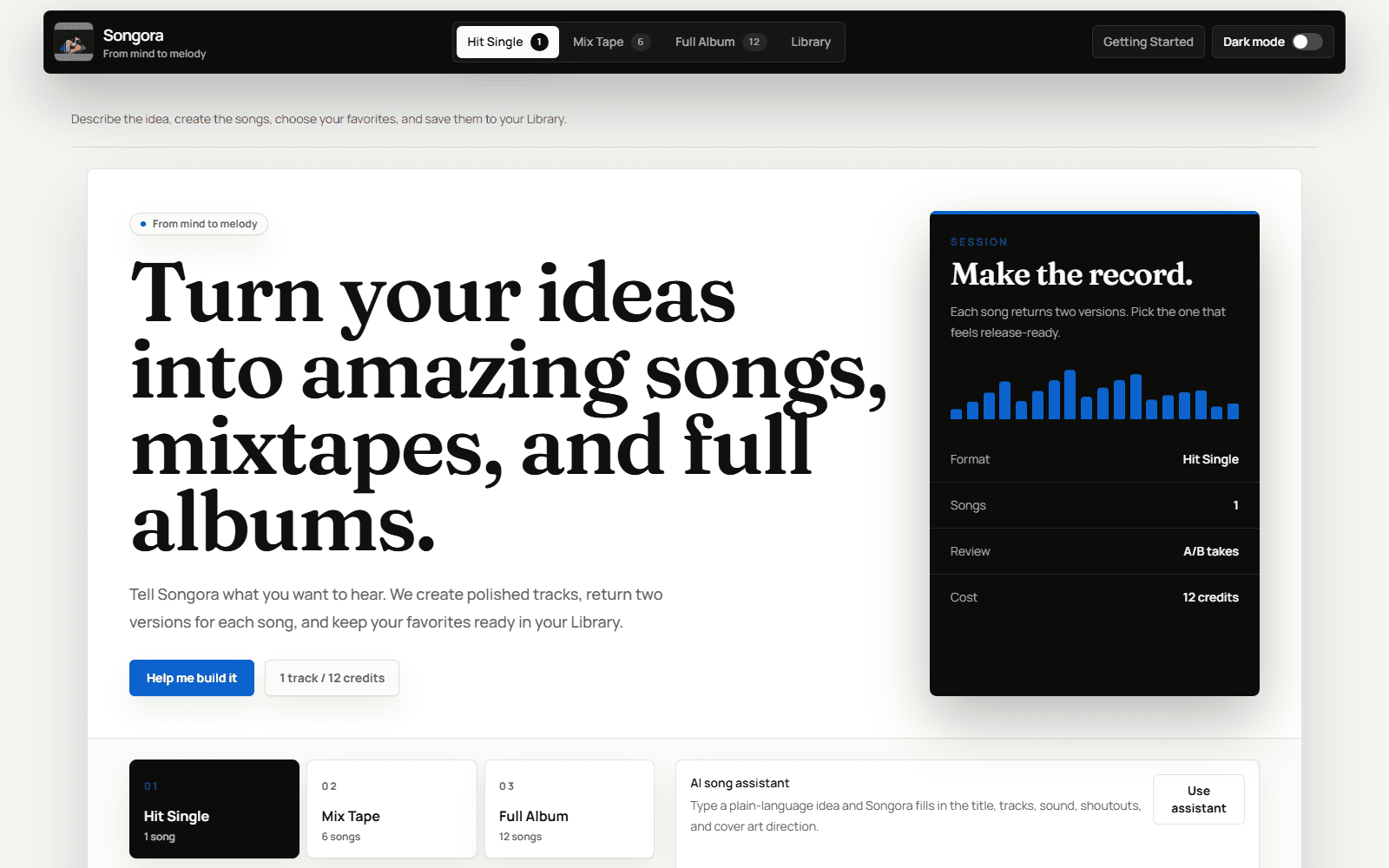
A quick guide to creating songs, mix tapes, and full albums in Songora.
This guide shows where to click, what to type, and how to use the AI song assistant to fill in a strong first draft.
Write less, say more
Start with one sentence about the music you want. Include:
AI song assistant
AI creates the first draft. You stay in control and can edit everything afterward.
Step 1
Start with one song, a six-song mix tape, or a full twelve-song album. Songora updates the track list and credit total for the format you choose.
Step 2
Enter the song, mixtape, or album title. You can also switch formats here before you fill in the rest.
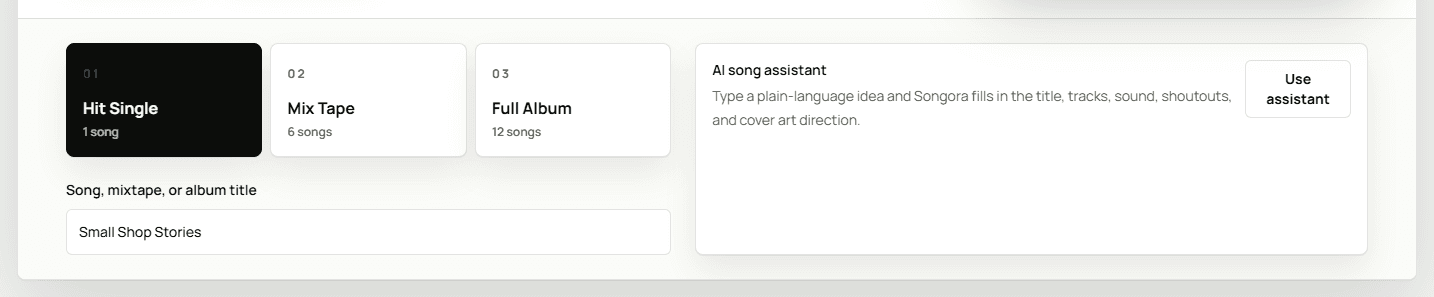
Step 3
Open the AI song assistant, type one plain-language idea, and add an optional sound reference. You can also fill in the sound and track details yourself.
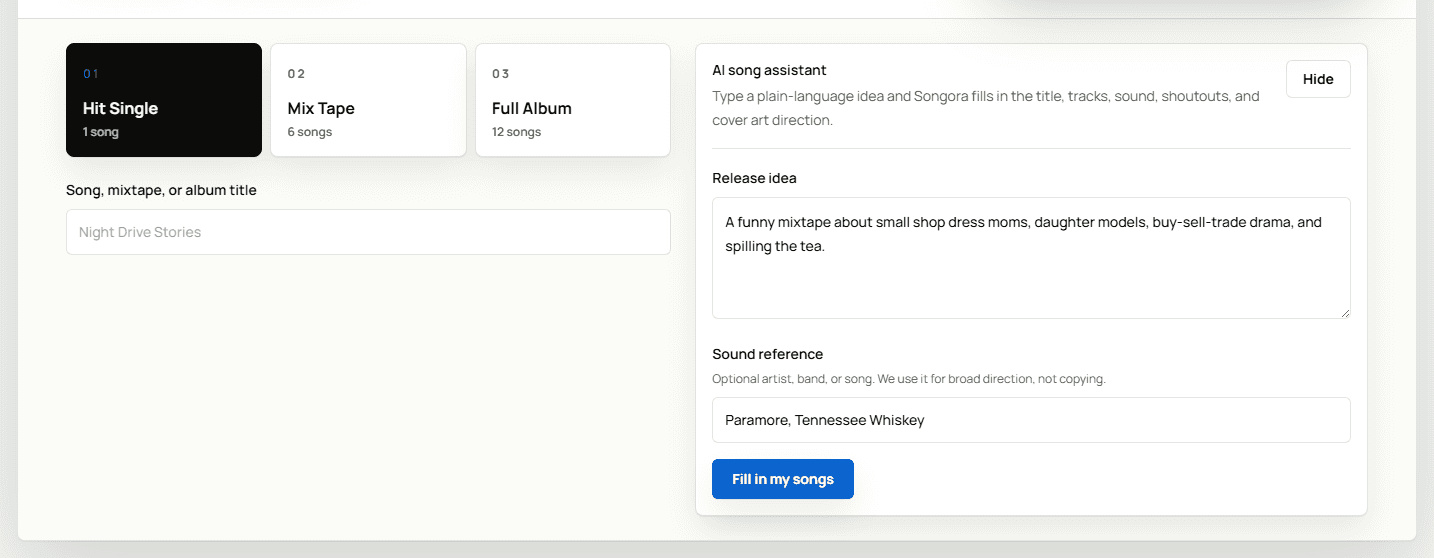
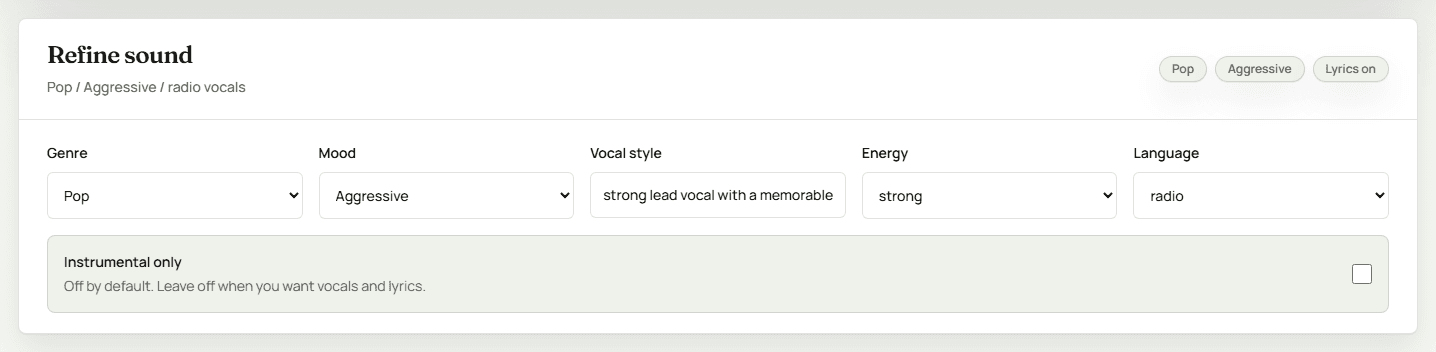
Step 4
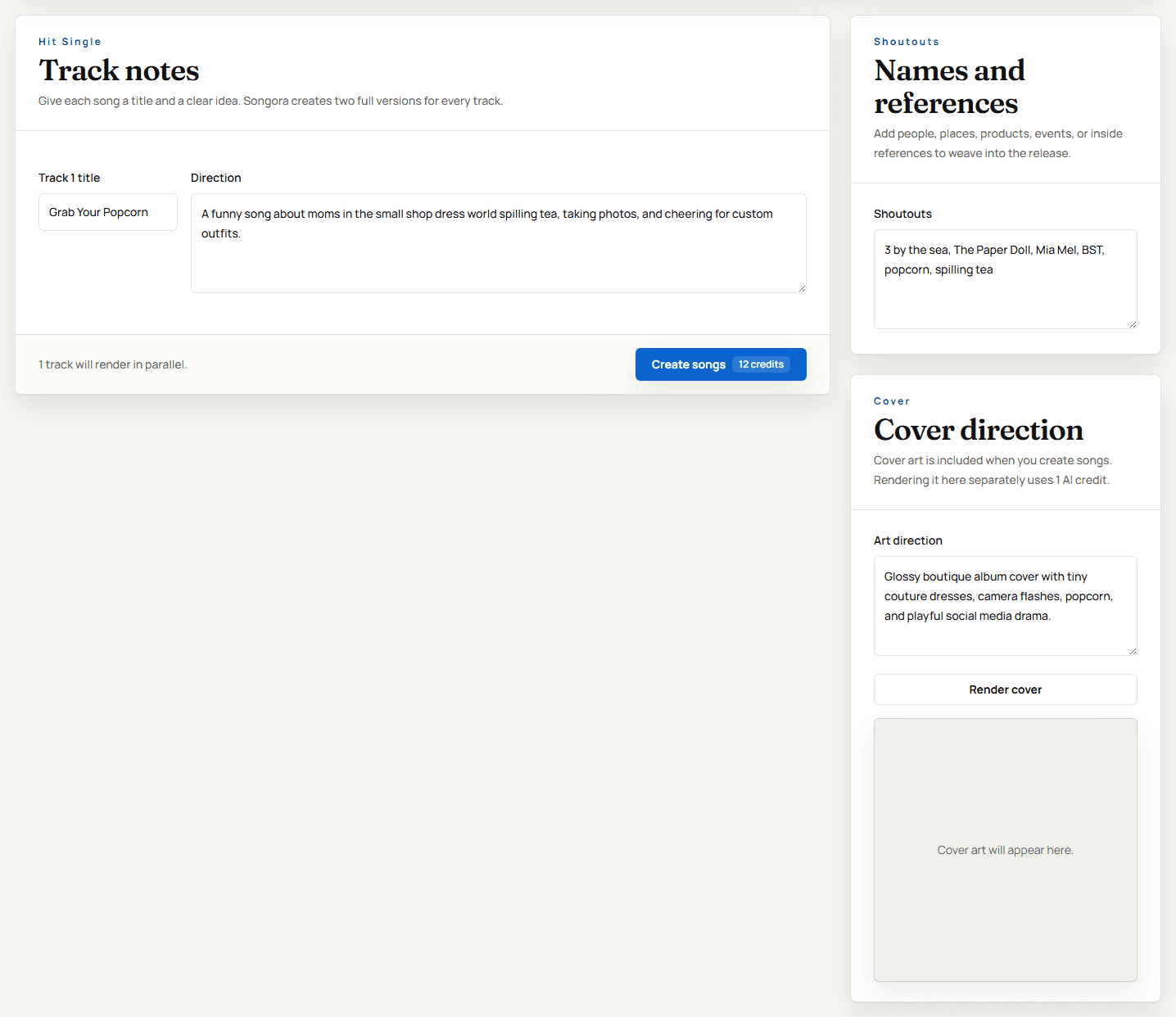
Edit the generated track notes, refine the sound, add names and references in the Shoutouts section, and write cover art direction. When it looks right, create the songs.
Step 5
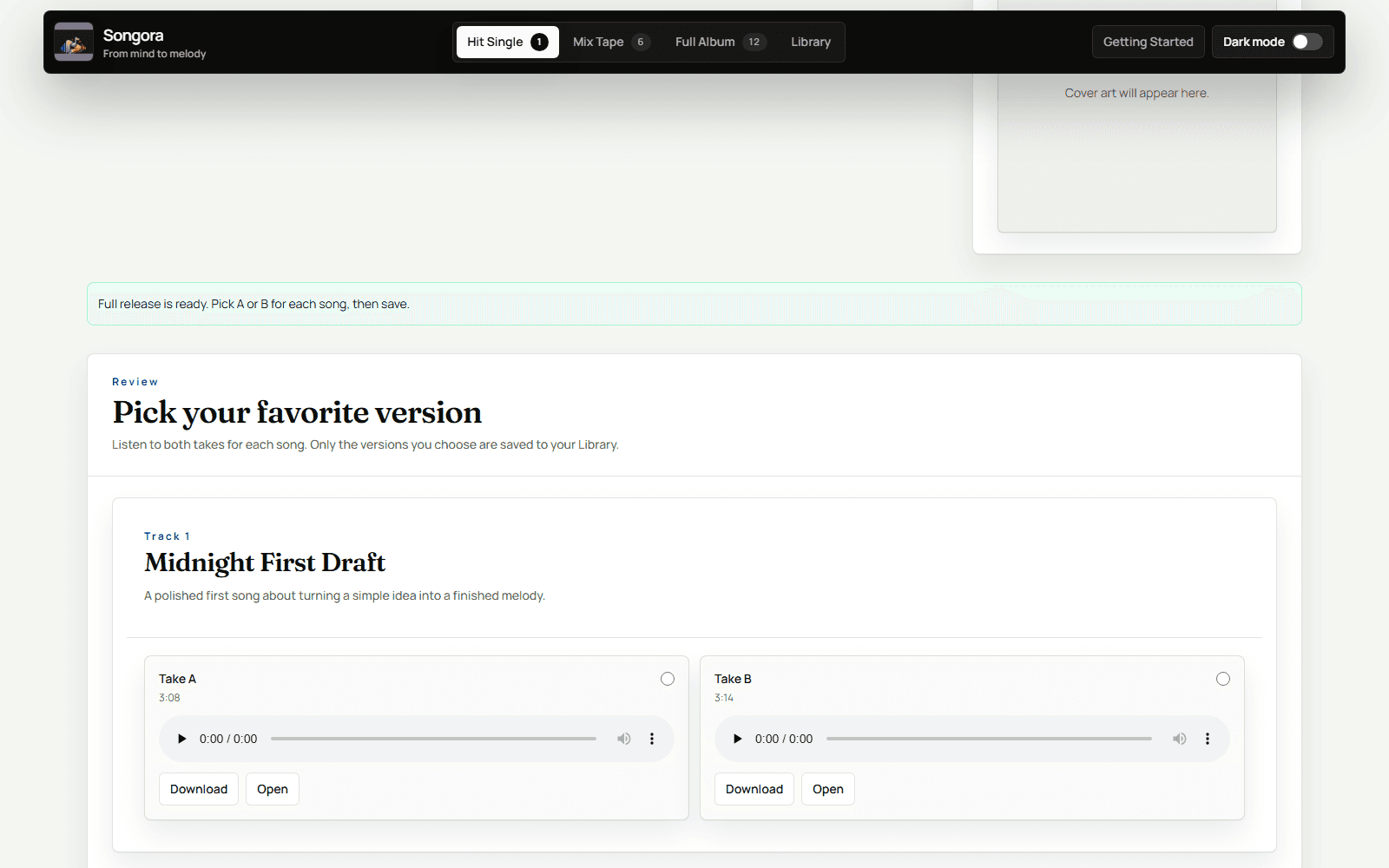
Every song returns two versions. Listen to A and B, choose the one you like best, then save the release.
Step 6
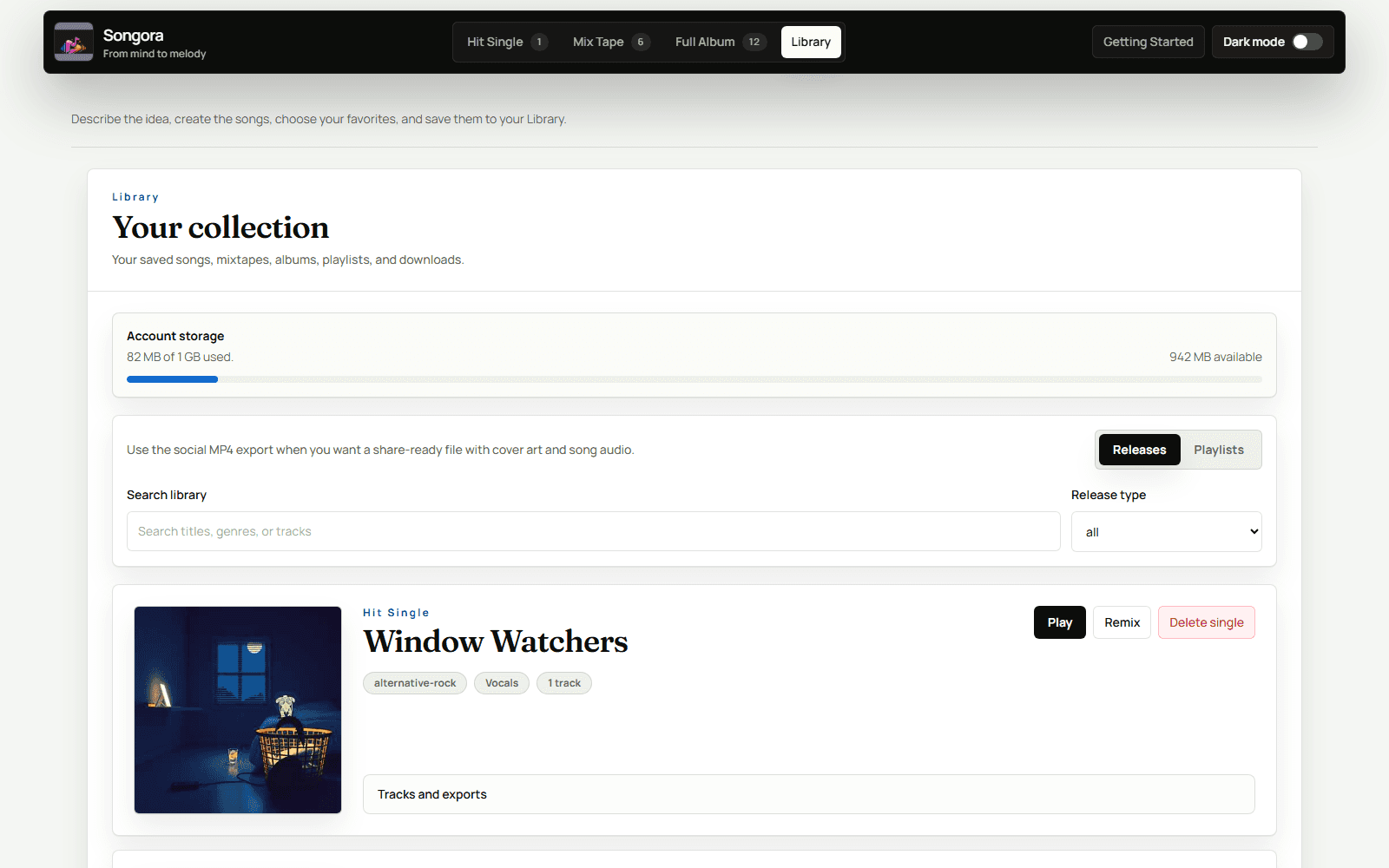
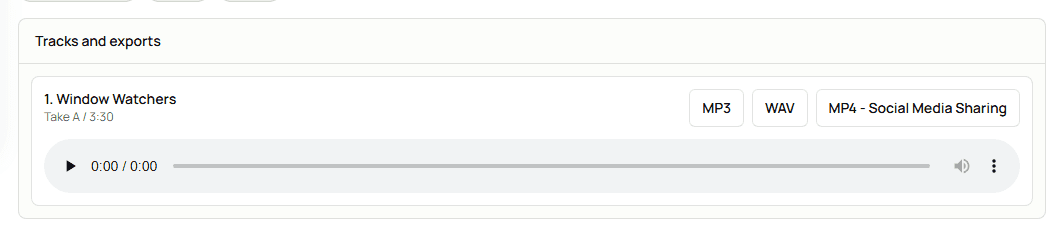
Saved music stays in your Library. Play releases, download files, remix songs, export social MP4s, or create playlists.
Ready
Go back to the studio, type one idea, and let Songora help shape it into finished music.